How to Block Online Distractions (Without Willpower)
Willpower won't beat online distractions. Friction will. Learn how to block distracting sites, track your time, and stay focused with Time Blocker.

You don't lose focus because you lack discipline. You lose it because the most distracting sites are engineered to be one reflex-click away, and willpower is a terrible defense against a habit you've practiced ten thousand times. The durable fix is friction: make distractions harder to reach than the work. Here's exactly how to do it.
So if you want to block online distractions for good, stop trying to out-muscle them. The people who reclaim their attention aren't the most disciplined — they're the ones who removed the doors that open by themselves.
- Willpower is finite; friction is set-and-forget, so make distractions harder to reach than the work.
- The real cost of a distraction is the ~23 minutes it takes to refocus, not the minute you spend on it.
- Track first, then block only the two or three sites that actually drain your time.
- Schedule blocks during your focus hours so staying on task isn't a daily decision.
You don't need more willpower. You need fewer doors that open by themselves.
Why Willpower Fails (and Friction Wins)
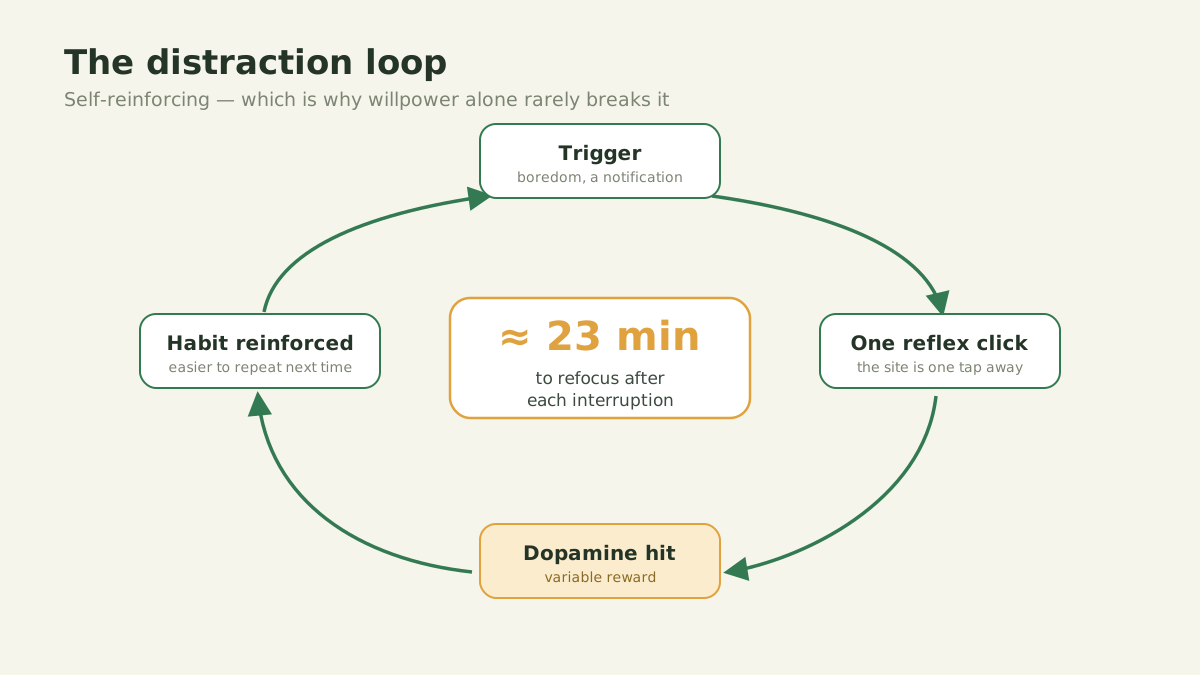
Most focus advice tells you to try harder. That's exactly why it doesn't work. Willpower is a finite resource that drains across the day (psychologists call it decision fatigue) while the apps and feeds competing for your attention never get tired. They run on variable rewards, the same mechanism that makes slot machines compulsive: every refresh might surface something new, so your brain keeps pulling the lever. You're not weak. You're outnumbered.
The hidden 23-minute tax
The damage from a distraction isn't the 30 seconds you glance at a feed. Gloria Mark's research at the University of California, Irvine found it takes an average of about 23 minutes to fully return to a task after an interruption. Check three distracting sites in a single morning and you can lose over an hour of real focus, not to the sites themselves but to the cost of re-immersing every time you come back.
You check more than you think
A widely cited Asurion study found people pick up their phones roughly 96 times a day, about once every 10 minutes of waking life. Most of those checks are automatic, not chosen. That's the problem friction solves: an automatic habit needs an automatic countermeasure, not a fresh act of self-control every single time.
5 Ways to Block Online Distractions That Actually Stick
Blocking works when it's effortless to maintain and hard to bypass. These five strategies do both. You can apply them with any serious blocker (see how the best website blockers compare on price and privacy), but we'll use Time Blocker for the specifics because it's free and keeps everything on your device.
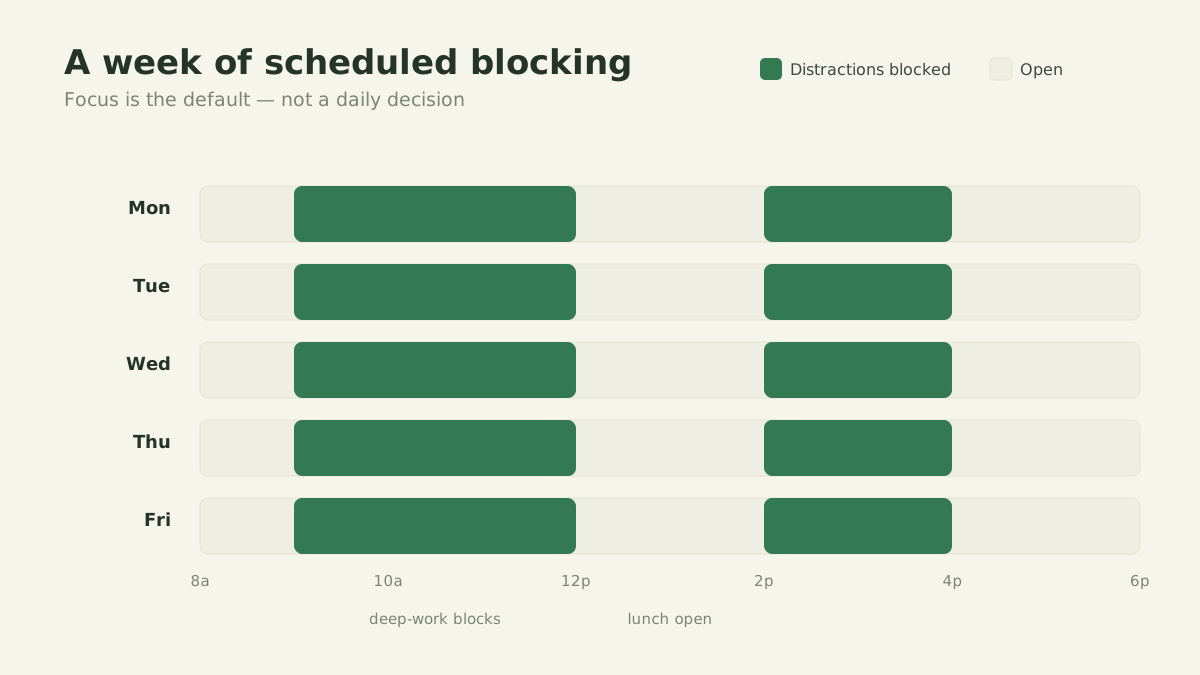
- 01Block by schedule, not by mood. Decide your focus hours once (say 9am to noon) and have distracting sites blocked automatically during them. A schedule you set on Sunday can't be talked out of on Wednesday.
- 02Block the whole domain, not one page. Distraction is fluid: block a single article and you'll just find another on the same site. Time Blocker blocks at the root-domain level, so shutting the domain closes the whole site, not one URL.
- 03Make "blocked" the default and allow on purpose. It's easier to open a door deliberately than to resist one that's always ajar. Keep your worst offenders blocked through your work window and lift the block only when you genuinely need them.
- 04Track before you block. Don't guess which sites cost you the most. Measure. Time Blocker logs time per website per day, so you can target the two or three real drains instead of blocking sites that were never the problem.
- 05Stack a little extra friction. Sign out of distracting accounts, keep them off your phone's home screen, and use a separate browser profile for work. Each added step buys a moment of awareness before the reflex fires.
Stop deciding, start blocking
Time Blocker keeps your worst distractions shut during your focus hours. It's free, and nothing it tracks ever leaves your browser.
How to Block Distractions With Time Blocker
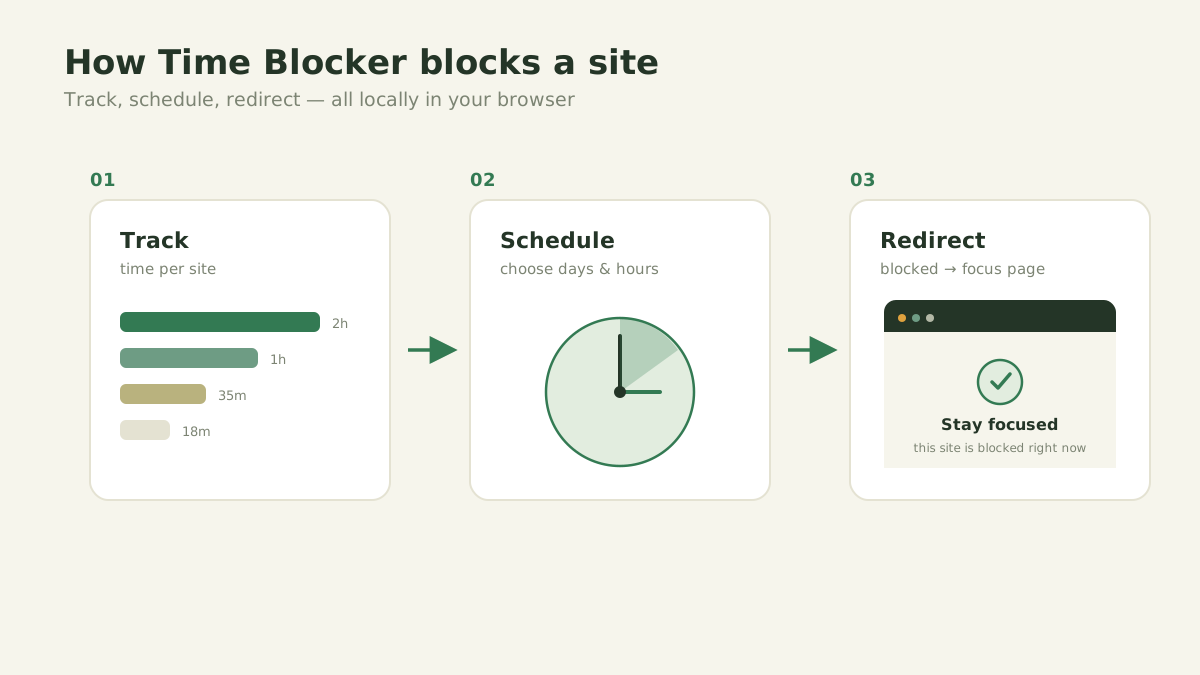
Time Blocker is a free browser extension for Chrome and Firefox built around one idea: your attention is yours, and so is your data. It does two things well: it tracks how long you spend on each website, and it blocks the sites you choose on a schedule (or always). There's no account to create and nothing uploaded anywhere; everything stays in your browser's local storage, which you can read more about on our privacy page.
What it does, and what it doesn't
Being honest about scope matters. Time Blocker does scheduled and always-on blocking plus per-site time tracking. It is not a usage-quota timer. It won't give you "15 minutes, then cut you off." Instead it blocks during the windows you define, which is simpler to reason about and harder to game. When you open a blocked site inside a blocked window, the tab is redirected to a clean focus page instead of the distraction.
Set it up in three steps
- 01Install Time Blocker from the Chrome Web Store (or the Firefox Add-ons site). It's one click and no sign-up.
- 02Open Settings, add the domains that derail you, and set the days and time windows to block them. Use the time-tracking data to pick the right ones.
- 03Work. When you drift to a blocked site during a focus window, Time Blocker redirects you to a focus page, a small, well-timed reminder of what you actually sat down to do.
Common Mistakes That Quietly Sabotage Focus
Even with the right tool, a handful of predictable mistakes undo the benefit. Watch for these:
- Going all-in on day one. Blocking 40 sites from 6am to 10pm feels virtuous for about a day, then you rip the whole thing out. Start with your top two or three drains and tighten gradually.
- Blocking by feeling instead of by data. The site you resent isn't always the one costing you the most time. Check the numbers before you decide.
- Leaving an obvious escape hatch. If the same feed is one tap away on your phone, a desktop block just relocates the problem. Close the side doors too.
- Treating it as set-and-forget forever. Your distractions shift with your projects. Revisit your blocklist and time reports every week or two.
- Confusing "busy" with "focused." Blocking social media won't help if you just replace it with reflexive inbox-checking. Block the behavior, not only one brand.
Make It Stick: A 10-Minute Weekly Review
People who keep their focus months later aren't running on motivation. They're running on a habit they review. Once a week, spend ten minutes on this. For a fuller framework, see our guide on aligning your online time with your goals.
- 01Open your Time Blocker report and find the day's biggest surprise, the site that cost more time than you expected.
- 02Make one change based on what you saw: add a block, widen a window, or drop a site that turned out to be fine. One change, not ten.
- 03Check whether your focus windows still match your real schedule, and shift them if your week has changed shape.
Frequently asked questions
The questions readers ask most about blocking distractions.
How do I block a distracting website in Chrome?+
Can I block websites only during work hours?+
Is Time Blocker free?+
Is my browsing data private?+
How is Time Blocker different from other site blockers?+
Time Blocker
Free, private time tracking and site blocking for Chrome & Firefox.
Block your first distraction in two minutes
Add Time Blocker to your browser, pick one site that keeps stealing your focus, and schedule it shut during your next deep-work block. Want to go further? Pair it with ambient focus sounds for a distraction-proof work session.
Add Time Blocker to Chrome